Connect your phone
To show its screen on your computer, your phone needs USB debugging, an Android option that is hidden by default. You only do this once. PhoneCut has the same assistant built in: it checks each step by itself as soon as the phone is plugged in.
Menus vary by phone brand but stay similar. The pictures below show a Xiaomi phone set to French. If you cannot find an option, search the web for “enable USB debugging” followed by your phone model.
1. Turn on developer options
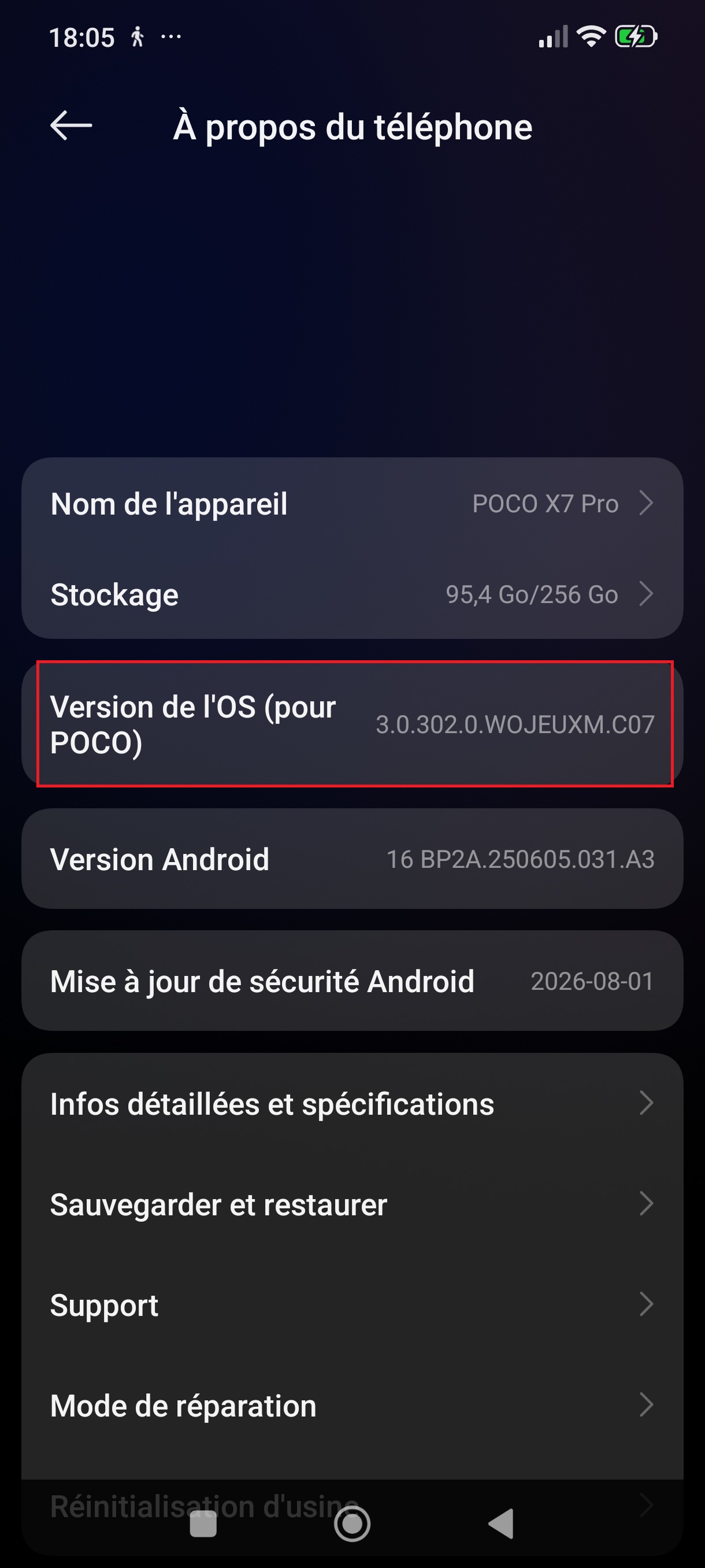
On the phone, open Settings, then “About phone”. Tap the “Build number” line several times in a row (its name depends on the brand, see below) to unlock the developer options.
| Phone brand | Where to find it |
|---|---|
| Xiaomi, Redmi, POCO | Settings → About phone → tap “OS version” several times (or “MIUI version” on older models). |
| Samsung | Settings → About phone → Software information → tap “Build number” several times. |
| Google Pixel | Settings → About phone → tap “Build number” several times. |
| Oppo, OnePlus, realme | Settings → About device → Version → tap “Build number” several times. |
| Other brand | Usually: Settings → About phone → tap “Build number” several times (sometimes under “Software information”). |
Not working?
- If the phone asks for your screen lock code, enter it: this is normal.
- “Developer options” does not appear? Type “developer” in the Settings search bar.
- Still stuck? Search the web for “enable developer options” followed by your phone model.
2. Turn on USB debugging
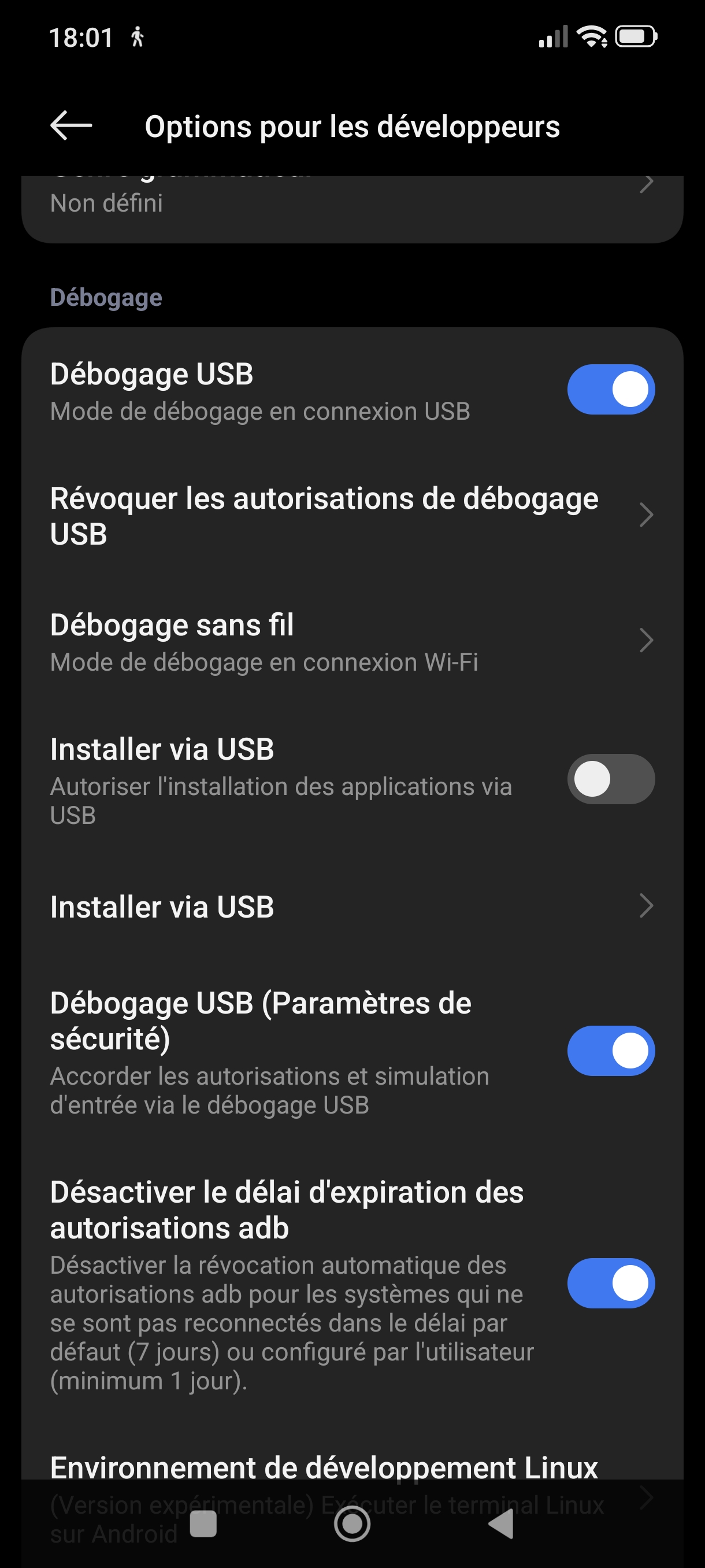
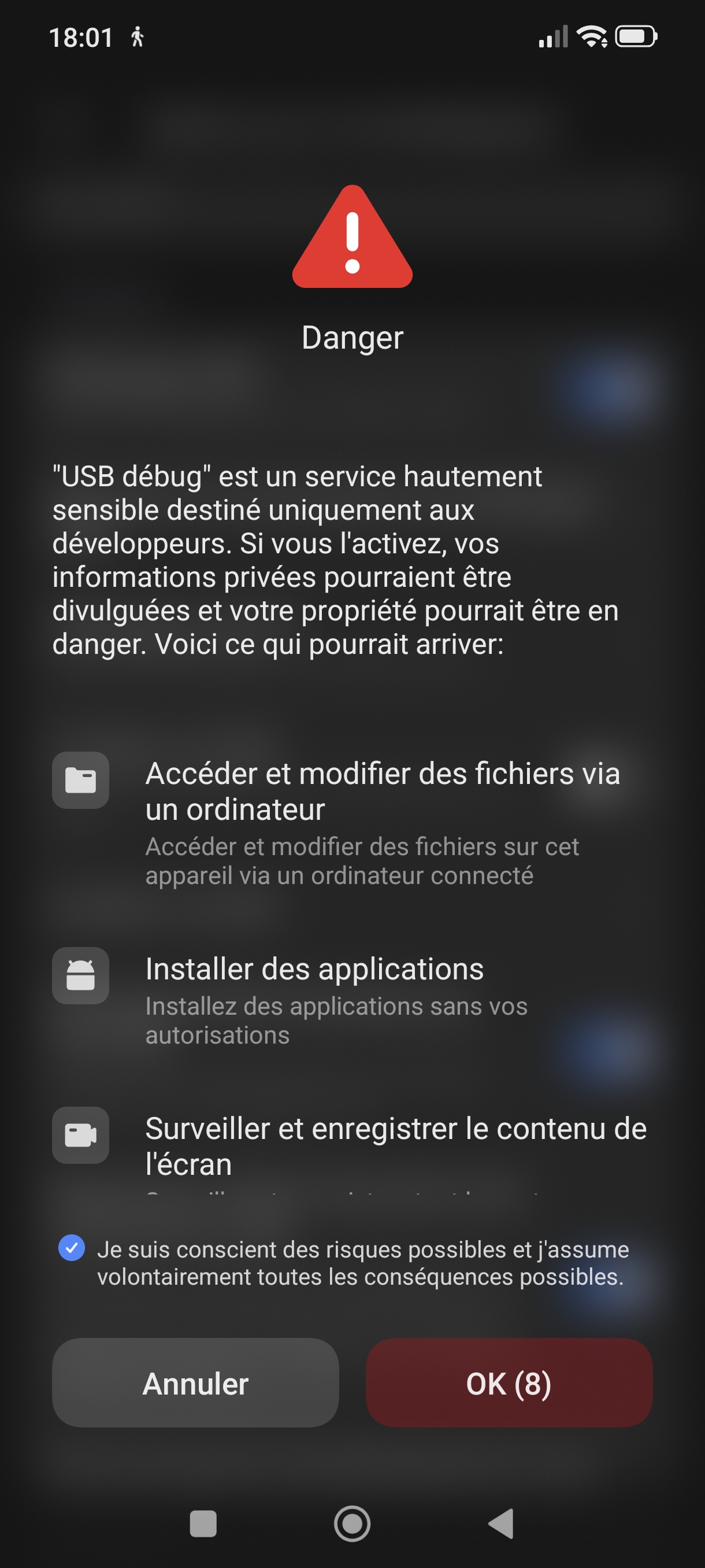
Open “Developer options” and turn on “USB debugging”. Confirm in the warning window that appears. Only “USB debugging” is needed: the other options can stay off.
| Phone brand | Where to find it |
|---|---|
| Xiaomi, Redmi, POCO | Settings → Additional settings → Developer options → USB debugging. |
| Samsung | Settings → Developer options (at the bottom of the list) → USB debugging. |
| Google Pixel | Settings → System → Developer options → USB debugging. |
| Oppo, OnePlus, realme | Settings → Additional settings (or System) → Developer options → USB debugging. |
| Other brand | Usually: Settings → System → Developer options → USB debugging. |
Not working?
- A warning window appears when you turn on USB debugging: this is normal, confirm.
- Cannot find the option? Type “USB debugging” in the Settings search bar, or search the web with your phone model.
3. Plug in the phone
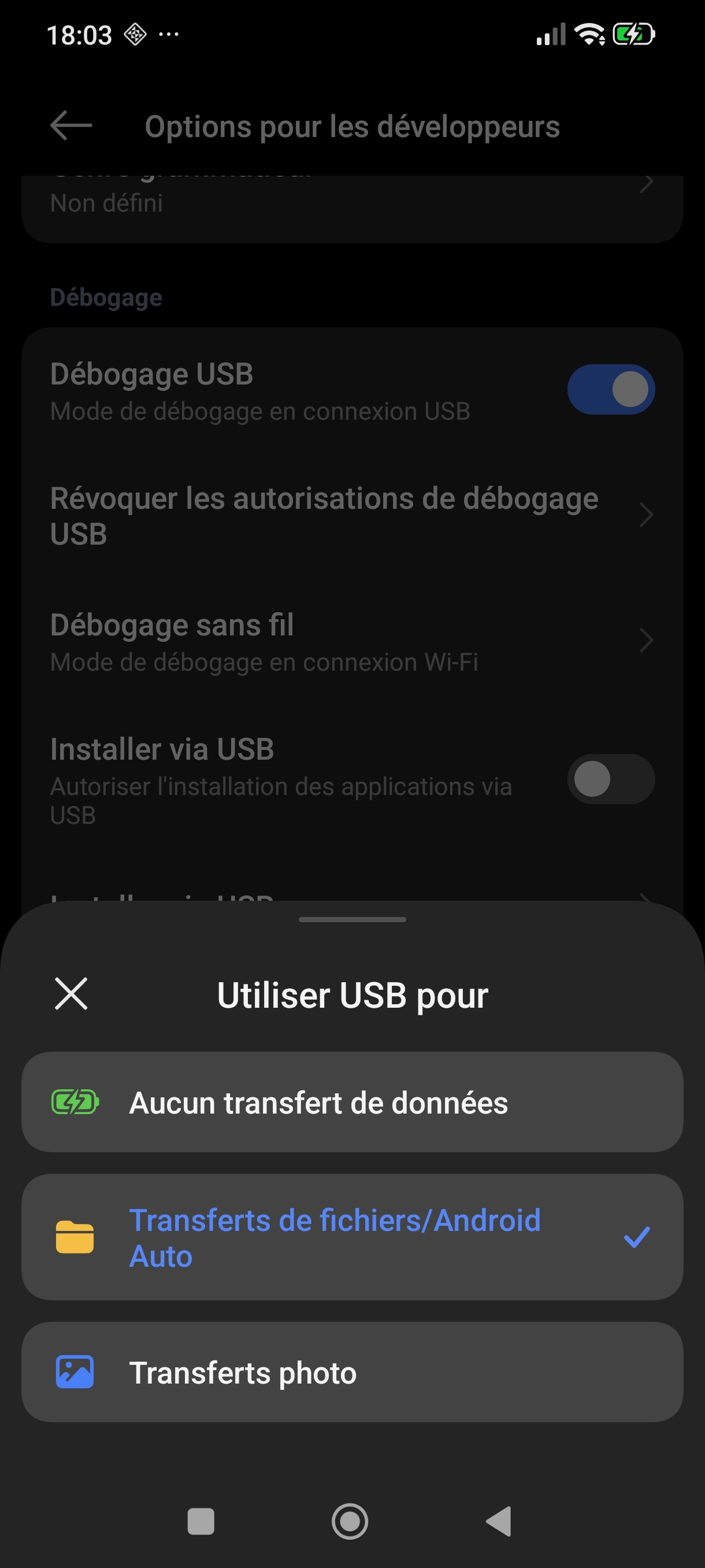
Connect the phone to the computer with a USB cable, preferably on a port at the back of the PC. Careful: some cables only charge and do not carry data. If a USB notification appears on the phone, choose “File transfer”. PhoneCut detects the phone by itself.
Not working?
- The phone charges but nothing happens? The cable probably does not carry data: try the phone's original cable, or one you have already used to transfer photos.
- Plug directly into a port at the back of the PC (no hub or extension). Front ports are often less reliable.
- Open the phone's USB notification and choose “File transfer”.
- Check that “USB debugging” is still on: it is sometimes turned off after a phone update.
- Some phones need their maker's USB driver (for example “Samsung USB Driver”). Search for “USB driver” and your phone brand on the maker's website.
- Restart the phone, then plug it back in.
4. Allow this computer
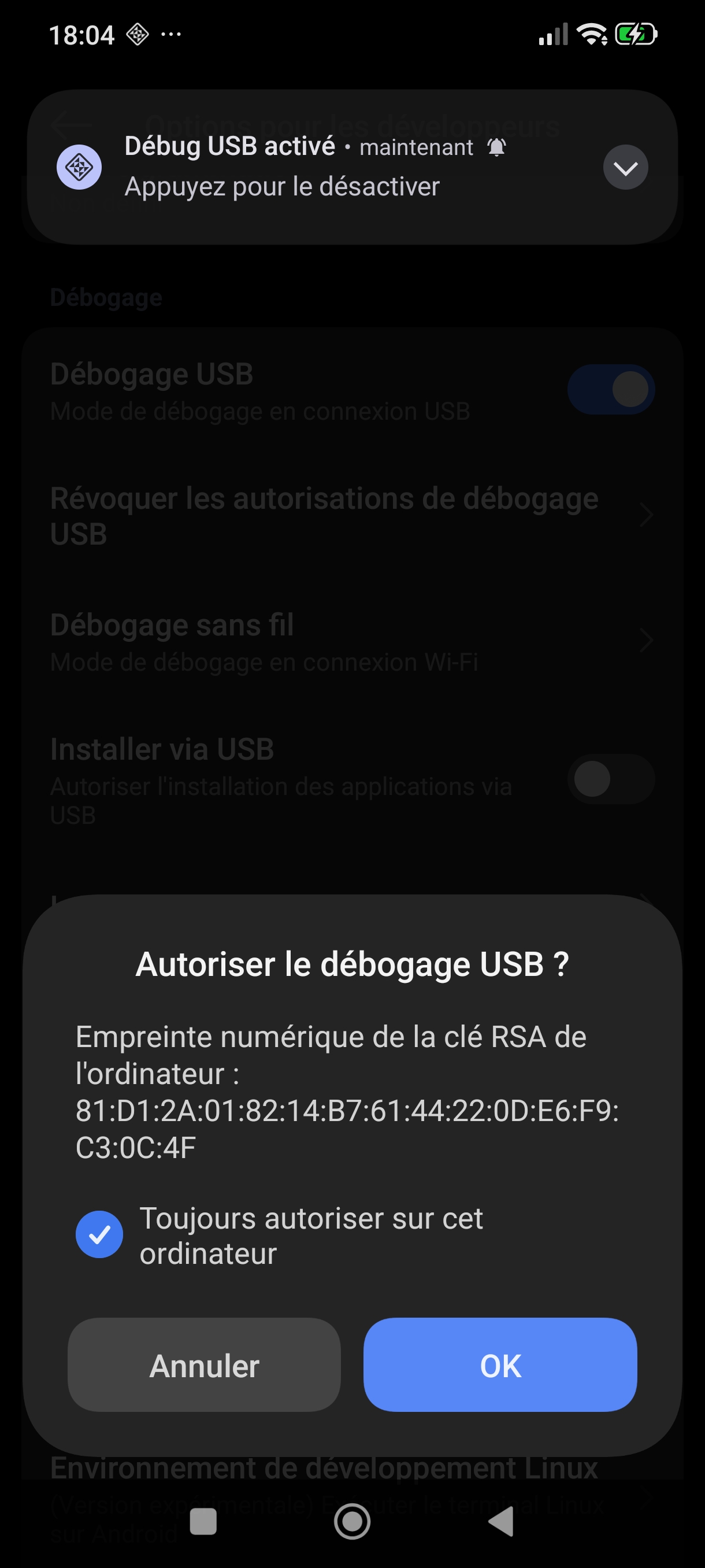
Unlock the phone: an “Allow USB debugging?” window appears. Tick “Always allow from this computer”, then tap “Allow”.
Not working?
- The window only appears when the phone screen is unlocked.
- Still nothing? In “Developer options”, tap “Revoke USB debugging authorizations”, then unplug and plug the cable back in.
- Close other Android programs open on the computer (Android Studio, transfer tools…).
All set!
Your phone is connected. You can now see its screen, record it and make clips. In PhoneCut, the assistant stays available in the Settings.
Free · Windows 10 and 11 (64-bit) · Android 5.0 or later
Latest version: ·All versions and release notes